Practical guide

How to use Totum AI on your phone
A supplier calls while you are away from your desk. They want to know whether a bill has been recorded. You should be able to check without turning the question into a chain of calls.
Totum gives you access to accounting data and work from your phone. You can ask for a balance, start an invoice, or bring a bill into a workflow while the details are still in front of you.
Open Totum and choose the company
Sign in to Totum in your phone’s browser and select the company you want to work with. If you manage more than one company, check the selection before asking a question or preparing an entry.
Start with a request that includes the party or period, such as “Show outstanding invoices for this customer.” The answer depends on the accounting data available for that company.
Get the answer, then ask the next question
You can ask for sales, balances, outstanding payments, or the records behind a number. Follow up in the same conversation when you need a narrower view.
Try “Which customers are overdue?” followed by “Show the invoices behind this customer’s balance.” That gives you something concrete to discuss with the team.
- Name the company or confirm the selected company.
- Include the customer, vendor, or date range where it matters.
- Check the records behind a balance before acting on a surprising number.
Turn a photo or voice note into accounting work
Upload a bill or give an instruction by text or voice. Totum can prepare supported accounting entries and invoices for review. Our accounting automation guide explains how that request becomes a write flow.
For an invoice, include the customer, items, amounts, and any details the document needs. Review the prepared work before approving it. A missing detail is easier to fix before the entry reaches the books.
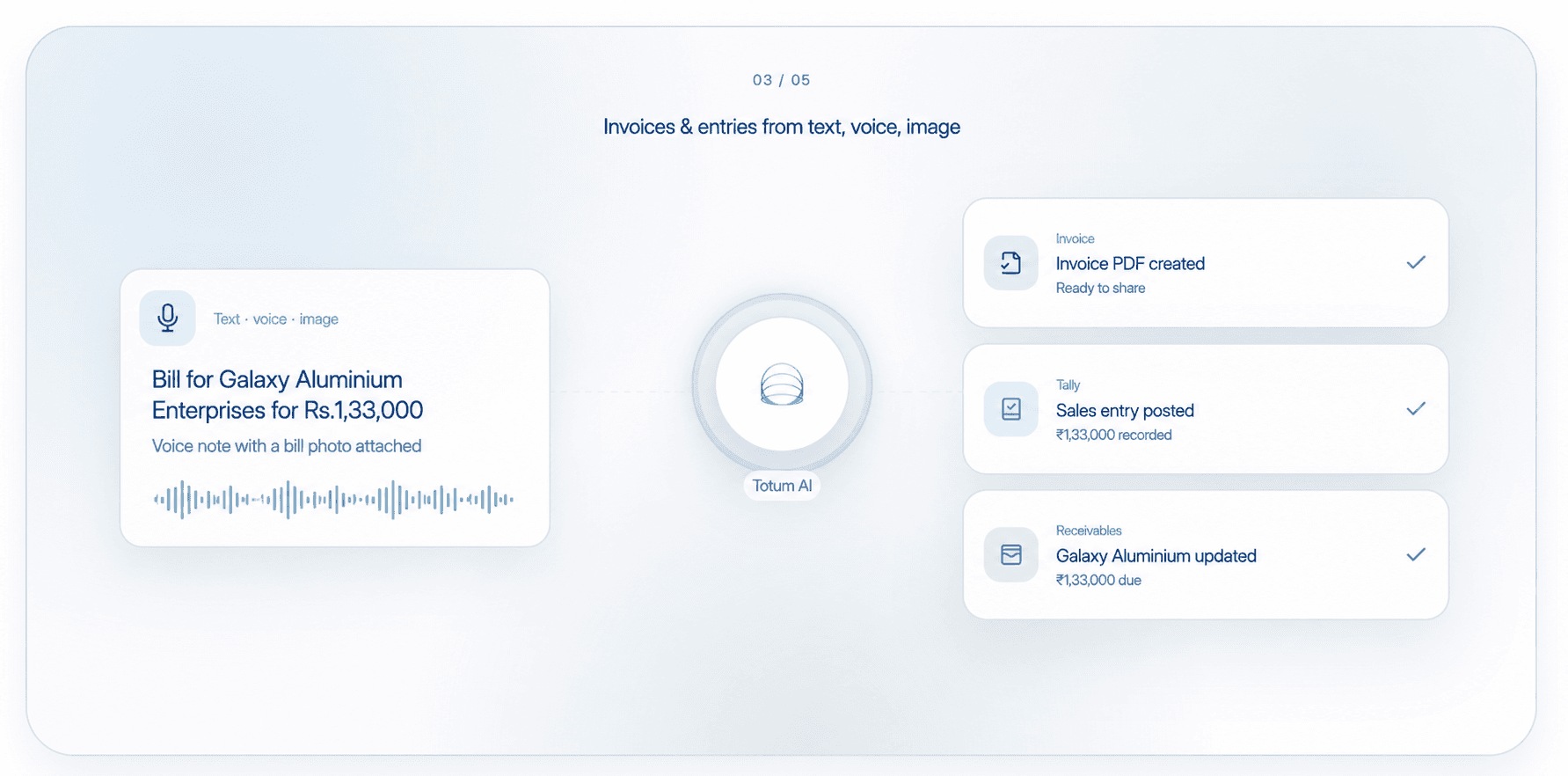
Review before the work reaches Tally
Check the company, party, document date, and amounts. Complete the required approval and check the posting result through the connected workflow. A submitted request is not yet a confirmed entry.
The phone is where you start or review the task. The connected accounting system still needs to be available for the write action to complete.
Keep the team involved
Use connected Gmail, WhatsApp, and Slack workflows to bring requests into the team’s accounting work. See how a hospitality company uses Slack and Tally for a practical example.
If a colleague needs access, follow the steps for adding users. When a question is about an old or confusing balance, use the approach in finding data and aligning historical books.
Get started
Automate your accounting with Totum AI
Entries, invoices, reconciliation, and reports. One workspace for your accounting team.
Start for freeKeep reading